How to troubleshoot wired and wireless networks and troubleshooting tools
At times, your networks either wired or wireless will always be subject to some problems, failures and faults. In most of the cases, the problems that tend to arise or occur are not so much sophisticated and you can be easily troubleshoot them as long as you are conversant with all the network troubleshooting tools. You should also be equipped with the knowledge to help you identify a network problem so as to be in a position to establish the most ideal way to troubleshoot it. In some instances, some specific steps have to be followed in the course of troubleshooting. It is therefore important that you are also familiar with these steps so as to make your troubleshooting activity quite easy. Discussed below are some common network symptoms that can call for network troubleshooting.
Common symptoms
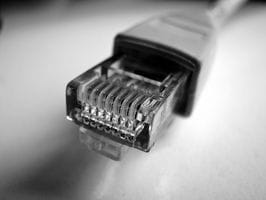
Here are some common symptoms of the problems which arise when the connection is made;
No connectivityAt times, the local devices we use tend to have no connectivity to a particular network or rather the internet. This can be very agonizing since it is a clear indication that your computer is not communicating with other network devices.
This is a problem that could be caused by many factors. However, the first step towards determining the absence of connectivity is through pinging. If your computer fails to ping, then it is outright that there is some problem. Try to take a look at the adapter configurations in the computer. Plug in the network cable. This problem can also result due to incorrect configuration of the device to a particular subnet mask. To establish if your device is connected to the internet, you should try pinging the Google DNS server and if connected, it gives a response to the ping.
APIPA addressAutomatic private IP addresses are addresses that are automatically assigned by your operating system when the DHCP server is unavailable. These are addresses that are designed to work on local links or subnets. To determine the available IP configurations in your network, you can use the IPCONFIG command.
Limited connectivityLimited connectivity is not quite a serious problem as it basically means that your device has access to some connection but not fully. This problem can be easily resolved by checking the connection's bandwidth or checking the network adapters for problems that could be resulting into such an issue. You should also ensure that there is no network interference.
Local connectivityLocal connectivity is at times lost as a result of poor subnet configurations. In such a case, your device is not able to communicate with other devices on the same local network due to some mismatch in the subnets.
Intermittent connectivityAn intermittent connectivity is a network problem that mainly comes as a result of having duplicate IP addresses on a particular network. By having duplicate Ip addresses it means that the devices have exactly the same IP addresses and therefore it may lead to a situation where some devices can barely communicate with each other. Such a problem causes devices to appear as if they are communicating with some device and not others. This problem can be easily solved by making sure that there are no duplicate IP addresses on the network maybe by removing one of the devices, making IP address reconfigurations and making sure that all network users have a unique IP address.
IP conflictAn Ip conflict in a network is mainly as a result of the existence of duplicate ip addresses. In spite of this being a bad networking problem, the operating system has the capability of detecting duplicate IP addresses. An IP conflict can result into the absence of communication between subnets configured in different machines.
Slow transfer speeds
This is a problem that many network users tend to refer to as slow networks. Handling this problem can be quite challenging owing to the fact that it can be experienced in many different places. In this case, you may require to bring down the problem into pieces so as to easily identify the availability and health of your network.
Such a problem can arise due to very many reasons which can be quite difficult to establish. You can decide to manually set your network speed so that it remains constant throughout and hence no instances of slowing down. The networking hardware can also be the cause of such a problem and therefore checking the network adapter can be of much help. You should also take a look at the networking cables.
Low RF signalLow radio frequency signal is a challenge that is mainly witnessed in wireless networks. In this case, network interference becomes highly sensitive such as conflicting frequencies due to an activated access point. Such a problem can also be induced by the presence of some other signal emitting devices such as a microwave.
In cases where there are numerous access points, you should ensure that the frequencies do not overlap so as to reduce the chances of interference.
Tools:
The following tools can be used to correct the problems;
Cable testerThe cable tester is a network troubleshooting tool that comes to effect after crimping. It is a device used to ascertain that all cables have been crimped properly. Depending on their use, they can be simple or highly advanced. The device is used to check the wire mappings so as to ensure that each wire is fitted in its appropriate connection pin. To ascertain a well crimped cable, the cable tester tends to produce some signals indicating that both ends of the cable are alright.
Loopback plugThe loopback plug or cable is a network troubleshooting tool that you should use in instances where you suspect a problem with your networking hardware. It is considered the best for testing physical hardware. It is known as loop back because it gets a signal coming from a port and gets it back to the same hardware. The loop back cable should not be confused with a crossover cable. In most cases, loop back cables are used hand in hand with some network diagnostic software so as to facilitate sending the network signals through the loop back cable.
Punch down toolsThe punch down wiring tool becomes a highly essential tool when there are many wiring blocks being used as patch panels in your organization. Using the punch down tool can be quite hectic and tedious owing to the fact that you should take every individual wire and punch it into the wiring blocks. The punch down tool also trims every single wire being punched in. By using the punch down tool, you tend to create some sort of electrical connection since you have pushed down the wire cables into the blocks. Using the punch down tool calls for a high level of organization since the wires to be punched down are numerous and therefore you should ensure that each wire is punched into its rightful position. After proper punching of the cables, you should come up with a special type of documentation so as to have an easy time in case the punch down activity will be required in the future.
Toner probesThe toner probes are used in cases where punching down of the cables was done and no documentation was done. If you are not sure of the wire ends, use a toner probe since it is designed to find where such wires happen to go. Toner probes can be in two forms, first is the tone generator which you can connect to the wires while the other is the toner alligator which you can directly plug an RJ45 or RJ11 cable.
Wire strippersWire strippers are tools that are used to peel of the outer sheath on a networking cable so as to make it easy to crimp. It appears like some sort of knife that you use to peel the outer cable cover.
CrimperThe crimper is a special type of tool that is mainly used to cut the Ethernet cables into the right size. This mainly applies to environments where you are required to set up your own network without using cables that have been purchased in their accurate sizes. Crimpers can be used for Ethernet cables, coaxial cables, twisted pair cables and the fibre optic cables. This is a device that you use to put a connector on one end of the cable. For top quality connections, you must ensure that you have the best crimper especially in cases where there are hundreds of cables to crimp. To become an expert in cable crimping, constant practice is required.
Command Line Tools
PINGThe ping is a command line utility that is used to check for connectivity between two devices. With this command, you are in a position to determine the reachability of another remote device through your device. It is an important network troubleshooting tool especially when configuring your device for the first time or if determining a problem about the device not communicating with others on a network. When you execute the ping command, you should expect some responses from the remote device which then indicates that your device can communicate with the remote one properly.
IPCONFIGThe IPCONFIG command is used to determine the ip address configurations for a particular device. This command is considered to be the initial step when carrying out network troubleshooting. Prior to pinging a device, you must know its local ip address and default gateway thus making this command so much important. Apart from giving information about ip addresses, it will also give information concerning other network adapter components and their configurations.
TRACERTThe tracert command is also referred to as the trace route. This is a command that enables you to determine the exact path taken by a packet as it moves between two computers or points. The working of the trace route command is in that it sends information onto the network and when it gets to the first router, the router responds with another message indicating that the packet has been received by the user. At times, the router might not send the message back.
NETSTATThe netstat command gives you the ability to view all active connections on your computer. The netstat command allows you to acquire a lot of information and details related to a network using the command line interface. This command gives loads of information both on incoming communications and outgoing communications. There are some different netsta commands such as netstat-a which shows incoming and outgoing active connections, netstat-b shows the programs using the communication and netstat-in shows all information as a whole without having to perform DNS queries.
NBTSTATThe NBTSTAT command is one that allows you to easily access most of the windows-specific networking features and also troubleshoot them. This is a command abbreviated whose full definition is Net BIOS OVER TCP/IP Statistics. With this command, you can query devices not only the ones located locally but also those across the network using Windows NetBIOS language to know its configurations with regard to Windows networking.
NETThe net command is one important command especially in cases where you can only access the command line interface of a machine. It provides all networking commands in a command prompt view. So as to know the command you are looking for, you should type net followed by a question mark and a list of all available commands is displayed.
Wireless locatorA wireless locator is a troubleshooting tool used in wireless networks since in such networks, cable testers and crimpers are of no importance. You can use this device to try and locate wireless frequencies and also map out their location easily.
It is undoubtedly true that effective use of all network troubleshooting tools plays a very important role in ensuring top notch efficiency in your networks' operations. It is highly advisable that a network professional masters the use of such troubleshooting tools. On the other hand, network problems should not be an issue to worry especially based on the fact that most of them are slightly related and bear some similarity in terms of their causes and troubleshooting methods.